
Free tool MS Project → Primavera P6
Free MS Project to Primavera P6 converter nothing uploaded, nothing to install
Drop an .mpp or .xml file and get a P6 XER with the calendars, WBS and milestones a P6 scheduler expects. Every rule the converter applied, and everything P6 will treat differently, is listed for you to check. The conversion happens on this computer: nothing is sent anywhere.
Convert a schedule
What it gets right
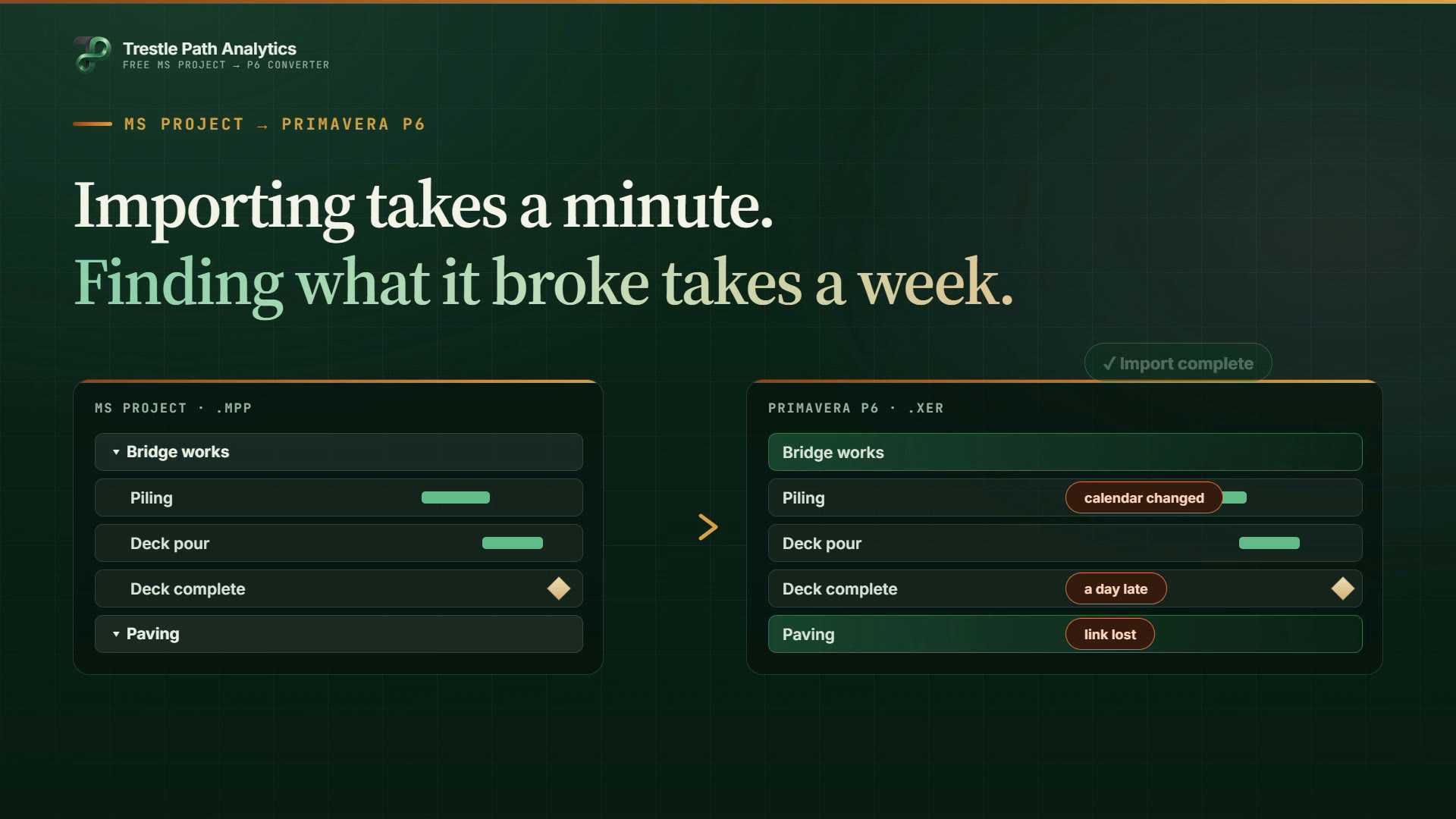
The six things other converters get wrong
Free converters upload your schedule and hand back an XER with no explanation. This one runs on your computer, follows the rules a senior P6 scheduler would apply, and writes down every decision.
01Calendars
Each calendar is rebuilt from its real working times, not from Project's "hours per day" option. Recurring holidays are expanded, and alternative work weeks become P6 exceptions. A task with crews runs on the hours its calendar and the crew's share, as Project schedules it.
02WBS
Summary tasks become the WBS, with codes that are unique under each parent. Links on summary tasks, which P6 cannot hold, are moved onto the activities they govern. Every moved link is listed.
03Milestones
Start or finish is decided for each milestone from the time Project shows it at, then from its deadline, constraint and logic, and the reason is shown. P6's own import makes them all start milestones, which shifts dates by a day.
04Lags
The P6 lag calendar is set to the successor's calendar, which is how Project counts lag. Percent and elapsed lags are converted to the working hours they cover.
05Constraints and manual tasks
Must Start On becomes Mandatory Start, and deadlines become Finish On or Before. Manually scheduled tasks are held exactly where Project shows them. The constraints that "Reschedule uncompleted work" leaves on the status date are removed.
06Progress
The status date becomes the data date. Paused work keeps its resume date, and out-of-sequence progress stands as it does in Project. The converter warns about work left in the past and about actual dates in the future.
Questions
Before you convert
Short answers; the six things above are the long ones.
Is it really free?
Yes. No sign-up, no limit on file size or on the number of conversions, no watermark. It is made by Trestle Path Analytics, whose paid product reviews P6 and Project schedules; the converter is free so that a reviewer can get a clean XER first.
Is my schedule uploaded?
No. This page reads the file in your browser and writes the XER there too; nothing is sent to a server. Once the page has loaded it works with the internet off.
Which Project files does it read?
An .mpp saved by Microsoft Project 2010 or later, or the XML any version writes with File › Save As › XML Format. The .mpp is the better source: Project's XML export can leave out the Active flags and the “honour constraints” setting. Older .mpp files should be opened and saved again in a current Project, or exported as XML. Password-protected files are refused.
Which P6 versions does the XER import into?
It writes the P6 Professional 24.12 XER dialect, which imports into P6 24.12 and 26.x (Professional and EPPM). Import it as a new project. Its calendars arrive as project calendars, so nothing already in your database is overwritten.
What happens to calendars, WBS and milestones?
Each calendar is rebuilt from its working hours and holidays, recurring holidays and alternative work weeks included, and identical copies are merged. Summary tasks become the WBS, and their links move to the activities they govern. Each milestone is decided as a start or a finish milestone from its time of day, its deadline and its logic, and you can switch any of them. Lags are counted on the successor's calendar, as Project counts them. Guides: P6 calendars, the critical path in P6.
What is not converted yet?
Resources, costs, notes, baselines and custom fields other than the one used for activity IDs. The report lists everything the converter changed and everything P6 will treat differently, so you can check the result before you rely on it.
What should I check after importing?
Schedule the project (F9) and compare the finish date and the milestone dates with Project; the report names the activities to look at first. The guides on P6 calendars, the critical path and reading an XER explain what to expect. Guides: reading an XER, reviewing a Project schedule.
Next step
Now review the schedule you just converted
Trestle Path Analytics reads the P6 file you just made, or the Project XML, in the browser. It covers the critical path, the DCMA checks, the month-over-month comparison and delay analysis, with nothing uploaded either.